


Laptop cooling pad design hinges on proper fan placement and airflow patterns to enhance heat management. Align fans with laptop intake and exhaust vents, ensuring quiet operation and maximizing efficiency—larger fans can operate at just 28dB. Effective models, like the Cooler Master Notepal X3, can lower temperatures by 15-20°C during heavy use. Understanding your device’s vent configurations allows you to optimize cooling. Interested in recommendations for specific laptop models? There’s more valuable information ahead.
Key Takeaways
- Align cooling pad fans with laptop intake and exhaust vents for optimal airflow and effective heat dissipation during intensive use.
- Utilize heat-conductive materials like aluminum in cooling pad designs to enhance thermal conductivity and improve heat dissipation efficiency.
- Regularly monitor laptop temperature to assess cooling performance, and adjust fan speeds to match thermal needs effectively.
- Employ the “tissue method” to verify proper airflow direction and ensure fans are correctly positioned for maximum cooling efficiency.
- Select cooling pads based on specific laptop models, considering their unique vent placements and cooling requirements for best results.
Importance of Proper Fan Placement
Proper fan placement in laptop cooling pads is not just a minor detail; it can greatly impact the device’s thermal management. When fans are strategically aligned with laptop intake and exhaust vents, cooling pads enhance overall airflow, effectively dispersing heat. Research indicates that larger, slower fans maintain quiet operation while circulating air, an important feature for uninterrupted tasks like gaming or video editing. Misalignment can create hot air pockets, resulting in thermal throttling, a situation you want to avoid. Utilizing heat-conductive materials like aluminum with well-placed fans improves heat dissipation, potentially lowering laptop temperatures by several degrees Celsius. Therefore, thoughtful design in cooling pads is crucial for maintaining ideal performance and longevity in your devices. Modern cooling solutions like the llano V12 system can reduce temperatures by up to 44°C within 90 seconds of operation.
Understanding Laptop Airflow

Airflow within a laptop is a finely tuned process crucial for maintaining ideal performance and avoiding heat-related issues. Laptop airflow primarily depends on strategically located vents: intake vents at the bottom and sides and exhaust vents to expel hot air. Understanding this dynamic helps in aligning cooling pads properly. A simple tissue test can determine airflow direction, guiding effective cooling pad placement. Misalignment may result in hot air pockets, reducing cooling efficacy and contributing to thermal throttling during demanding tasks, such as gaming or video editing. Quality cooling pads can achieve temperature reductions of 15-20 degrees Celsius during intensive use. Ultimately, continuous monitoring and adjustment of the cooling pad’s position relative to the laptop’s vents can greatly enhance thermal management, ensuring the device operates efficiently and remains cool under pressure.
How Cooling Pads Enhance Heat Dissipation
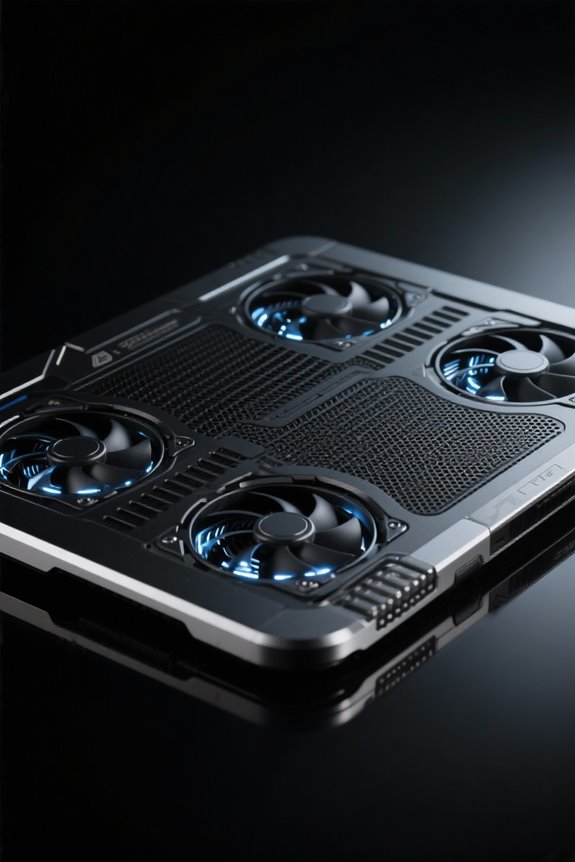
While many users may not realize it, cooling pads play an essential role in enhancing heat dissipation for laptops, particularly during resource-intensive tasks such as gaming or video editing. These devices blow cool air directly onto the laptop’s underside, which is important for managing heat. Effective cooling pads feature strategically placed fans that align with the laptop’s intake and exhaust vents, ensuring best airflow and preventing hot air pockets. Utilizing heat-conductive materials like aluminum improves thermal conductivity, further aiding heat dissipation. Additionally, larger, slower fans can operate quietly while still generating significant airflow. Proper alignment of the cooling pad’s fans with ventilation points is critical; any misalignment risks reduced performance and overheating. This careful design makes cooling pads indispensable for maintaining laptop longevity. Similar to how vertical gaming mice reduce muscle strain by 10% compared to standard mice, properly designed cooling pads can significantly decrease laptop operating temperatures.
Determining Optimal Airflow Patterns

How can one determine the best airflow patterns for a laptop’s cooling pad? First, identifying the laptop’s air intake and exhaust vents is essential; a simple tissue test will help—sticking indicates intake, while blowing away signifies exhaust. Aligning the cooling pad’s fans with these intake vents greatly enhances cooling efficiency. Beware of misplaced airflow, as opposing streams can trap heat in pockets, leading to thermal throttling. Regular temperature monitoring during operation can provide insights into airflow performance, indicating necessary adjustments. Additionally, some cooling pads feature adjustable fan speeds, allowing users to customize airflow based on specific thermal demands. This adaptability guarantees ideal cooling, enhancing overall laptop performance during various tasks, from gaming to professional workloads. For optimal performance, maintain a signal penetration radius of around 30 feet between your laptop and other wireless devices to prevent interference with cooling system controls.
Common Vent Configurations in Laptops

Understanding the arrangement of vents in laptops is fundamental for effective thermal management. Laptops commonly feature air intake vents situated at the bottom or sides, which draw in cool air, while exhaust vents, typically located on the back or sides, expel warm air. Many modern designs incorporate multiple intake and exhaust points to improve airflow efficiency, especially during demanding tasks. It’s essential to align a cooling pad’s fans with these intake vents for best performance. Additionally, blocking vents during use on soft surfaces can lead to overheating. Users should also consider USB ports’ placement, ensuring they do not obstruct airflow. Proper vent configurations play a significant role in maintaining performance and prolonging a laptop’s lifespan. Similar to how the GameSir G7 SE uses customizable back keys to minimize false triggers, laptop vent layouts are strategically designed to optimize airflow and prevent thermal throttling.
Impact of Airflow Misalignment
What happens when the cooling pad and laptop airflow systems are misaligned? Airflow misalignment can severely hinder cooling performance, resulting in higher laptop temperatures. When a cooling pad’s fans direct air against the laptop’s intake or exhaust vents, chaotic airflow patterns emerge, trapping hot air pockets. This inefficiency can lead to thermal throttling, particularly during high-performance tasks like gaming or video editing. For peak performance, aligning the cooling pad’s fan placement with the laptop’s ventilation openings is essential. Users are advised to regularly monitor temperatures and adjust the positions of the cooling pad. Simple tests, such as the tissue test, can verify alignment, ensuring that users attain maximum cooling efficiency and mitigated heat buildup. Similar to how ergonomic book stands promote optimal positioning for reading comfort, proper cooling pad alignment helps maintain ideal operating conditions for your device.
Testing Airflow Effectiveness
Evaluating the effectiveness of a cooling pad’s airflow is vital for users aiming to optimize their laptop’s performance. One practical approach is the tissue test, where a thin strip of tissue can reveal the laptop vent’s function: if it sticks, it’s an intake; if it blows away, it’s an exhaust. Monitoring airflow during intensive tasks, such as gaming sessions, offers insights into cooling efficiency. Additionally, covering the fan intake with cardboard, featuring a small opening, can help redirect airflow for better evaluation. Proper alignment of the cooling pad with the laptop’s vents prevents the formation of hot air pockets, further ensuring the effective cooling performance during demanding activities. Therefore, establishing airflow patterns is significant when evaluating cooling solutions. Similar to how high refresh rates enhance gaming performance on modern monitors, optimal airflow patterns significantly impact a laptop’s thermal efficiency during extended use.
User Experiences With Cooling Pads
How do users really feel about their cooling pads? User experiences demonstrate a significant variability in effectiveness, often linked to a laptop’s design, particularly internal vent placement. Many recommend the “tissue method” to test airflow alignment, ensuring ideal cooling. Discussions in online communities point to specific cooling pads—like the Cooler Master Notepal X3 or the Kootek 12-16″—for their compatibility and performance with popular laptop models such as Dell XPS or MacBook Pro. Adjusting cooling pad positioning can lead to noticeable temperature reductions during intensive tasks. Continuous user sharing of these experiences allows individuals to discover the best cooling pad options tailored to their laptop’s design and usage, improving overall cooling strategies and ensuring a better user experience. Similar to how memory foam padding enhances comfort in gaming headsets, ergonomically designed cooling pads can significantly improve the user’s computing experience during extended sessions.
Choosing the Right Cooling Pad Design
Selecting the ideal cooling pad design requires careful consideration of several key features to guarantee maximum performance. When choosing the right model, prioritize fan placement; larger fans situated centrally deliver balanced cooling across the laptop’s surface. Additionally, verify that airflow aligns with your laptop’s intake and exhaust vents to minimize hot air pockets. Adjustable fan speeds enhance customization for various tasks, from gaming to video editing, while materials like aluminum boost durability and heat dissipation. Ergonomic features, such as height adjustment, should also not be overlooked, as they promote better viewing angles and user comfort during prolonged use. Models like the nine quiet fans cooling pad demonstrate exceptional airflow while maintaining whisper-quiet 28dB operation levels. By evaluating these attributes, one can effectively choose the right cooling pad to meet their specific needs.
Recommendations for Specific Laptop Models
When considering a cooling pad for specific laptop models, it is crucial to align the pad’s features with the laptop’s unique design and cooling requirements. For gaming laptops like the ASUS ROG series, select pads with multiple fans positioned near side and rear vents for maximum airflow. Dell XPS users should opt for models with adjustable fan speeds to adapt cooling for various tasks. HP Spectre models perform best with flat designs that accommodate single large fans, ensuring adequate airflow. MacBook Pro users require pads that align with side intake vents. Finally, the Lenovo Legion series benefits from reinforced frames and dual-fan setups. For convenience, many of these cooling pads are also easy to carry, enhancing user mobility. Similar to Cherry MX keyboards, cooling pads prioritize durability and performance to ensure long-lasting functionality under extensive use.
Frequently Asked Questions
How to Position Fans for Best Airflow?
To achieve ideal airflow, one must position the fans with proper fan orientation directly beneath the laptop’s intake vents, ensuring exhaust vents remain unobstructed and maximizing heat dissipation without creating hot air pockets.
How to Setup a Laptop Cooling Pad?
Ironically, to achieve cooling efficiency, one must first set the cooling pad on a stable surface, align it with the laptop’s vents, adjust the height for comfort, and maintain cleanliness to guarantee ideal airflow.
Does a Laptop Cooling Pad Reduce Fan Noise?
A laptop cooling pad can indeed contribute to noise reduction by lowering the laptop’s temperature. This allows internal fans to operate quietly. However, effectiveness varies based on the laptop’s design and thermal management capabilities.
Where Are the Cooling Vents on My Laptop?
The laptop, like a diligent guardian, breathes through its vent locations—often found at the bottom and sides. These strategic openings facilitate a cool embrace, drawing in fresh air while exhaling heat during demanding tasks.


